One of the biggest hurdles for anyone creating long-form YouTube content—especially cooking videos—is editing. Filming is only half the battle; the real storytelling happens in the edit. How you trim, arrange, and polish your footage determines whether your audience sticks around or clicks away.
After a few years of making long-form Blackstone content, I’ve learned some tricks that make the editing process smoother and less intimidating. Let’s walk through some options, from beginner-friendly apps to professional software, and how to build a workflow that works for you.
Start Simple: Editing on Your Phone
If you’re just getting started, editing on your phone can be a great way to dip your toes in without investing in a lot of equipment. Apps like iMovie (iOS) or CapCut (available on iOS and Android) are surprisingly powerful.
- iMovie comes free with Apple devices and is intuitive for basic editing—cutting clips, adding transitions, inserting text overlays, and simple audio adjustments. It’s not as feature-rich as professional software, but it gets the job done, especially if you’re creating recipe tutorials where the focus is clarity.
- CapCut is a favorite among creators because it makes editing quick and mobile-friendly, and it even includes trendy transitions and captions that help with social media cross-posting.
The downside of editing on your phone is screen size and file management. Long-form videos take up storage quickly, and it’s not as easy to fine-tune details on a small screen. But if you’re just starting out, it’s a great way to learn.
Stepping Up: Editing on a Computer
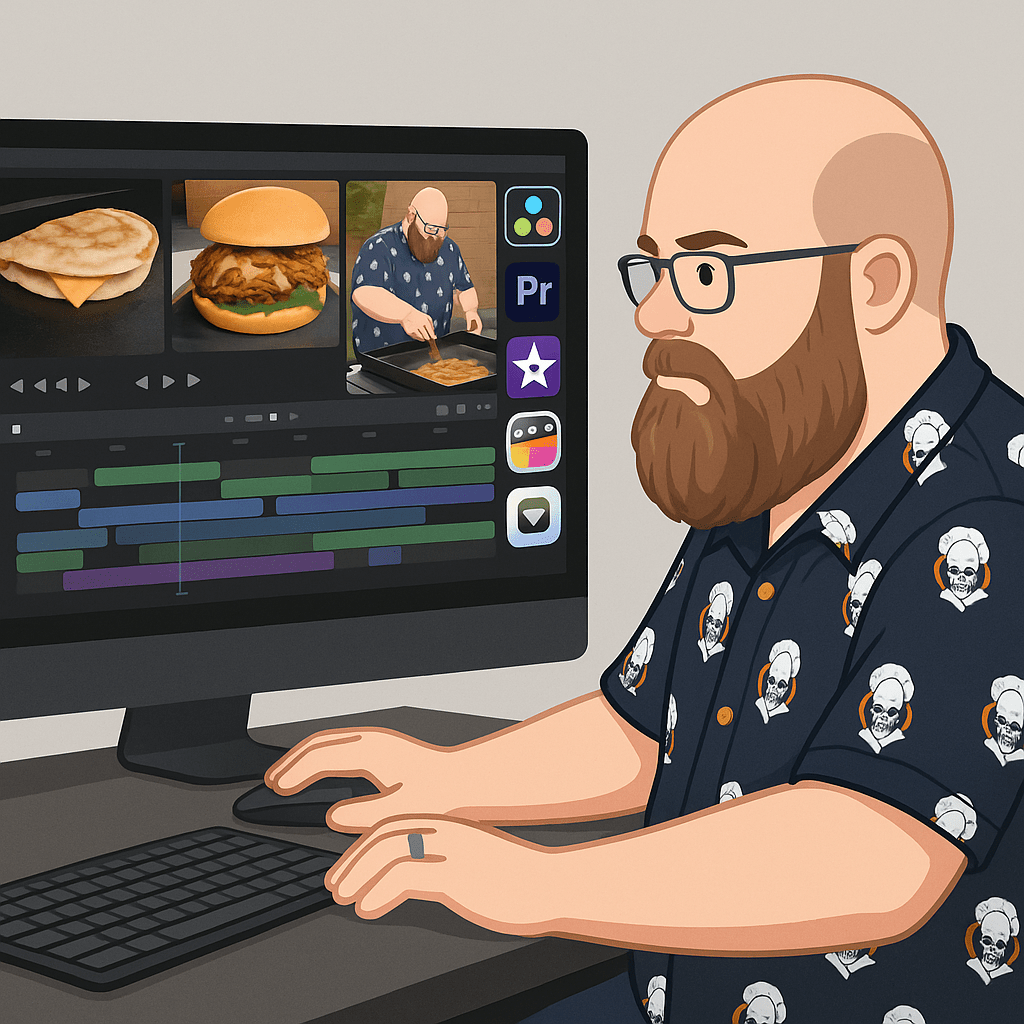
When you’re ready to take your content up a notch, moving to desktop editing software makes a huge difference. Here are some popular options I’ve used or seen other creators succeed with:
- iMovie (Mac) – The desktop version offers more control than mobile. It’s still very beginner-friendly but lets you layer audio, use green screens, and handle larger projects more smoothly.
- DaVinci Resolve – A free software that feels professional. It has a bit of a learning curve but is fantastic for color correction and more advanced edits.
- Final Cut Pro (Mac) – Think of this as iMovie’s big brother. It’s fast, polished, and designed for creators who want professional results without going full Hollywood.
- Adobe Premiere Pro – Industry standard for video editing, and incredibly powerful, but also subscription-based and more complex than the others.
My Editing Workflow
Here’s how I typically approach editing a cooking video:
- Import Footage – I load all my clips into the software, whether it’s phone-shot vertical previews or DSLR horizontal long-form shots.
- Rough Cut – Trim down the long footage to the essential steps. This is where “film everything” pays off because I can decide later which shots to keep.
- B-Roll and Angles – I insert close-ups of sizzling food, overhead shots of chopping, or beauty shots to break up the talking and keep the video visually engaging.
- Narration and Audio – Since I narrate live while cooking, I don’t usually need a voiceover, but I’ll adjust audio levels so my voice sits above background noise or light music.
- Titles and Captions – Adding text for measurements, key tips, or funny asides makes the video easier to follow (and keeps viewers watching).
- Export Settings – Always export in HD (at least 1080p). If you plan to repurpose footage for Shorts, TikTok, or Instagram Reels, keep your original shots framed in a way that allows vertical cropping later.
Key Takeaway
The best editing software is the one you’ll actually use. If that means iMovie because it’s simple and free—start there. As your skills (and patience) grow, you can move to more advanced tools like Final Cut or DaVinci. The important thing is to develop a workflow that keeps you consistent and lets the food shine.
Long-form content may feel like a big leap, but with the right editing process, it becomes less about “getting it perfect” and more about sharing your cooking in a way people want to watch.
 Blackstone Cooking
Leave a comment